

 Max Pankratov
You prepare an old iPhone for trade-in, and a factory reset screen asks a question that stops a lot of people cold. Delete eSIM and erase data? Or keep it while everything else gets wiped? This same choice shows up on iPhone and Android both. Should I keep eSIM and erase data is the exact question most people type into Google at that moment.
Pick wrong, and the result can be bad either way. Erase iPhone but keep eSIM by mistake, and you hand over a working mobile plan to a stranger. Do the reverse, and you lose your own connection for hours trying to get it back. A keep eSIM and erase data iPhone mistake is almost always fixable, just not instantly.
This guide explains what does keep eSIM and erase data mean, what happens if you keep eSIM and erase data versus what happens if you delete it, and gives one clear rule for keep or delete eSIM decisions. It also covers how to reset your iPhone and how to reset your phone on Android without losing your plan, plus a couple of less obvious ways an eSIM can vanish even when nobody chose to delete it.
What does “Keep eSIM and erase data” mean?
Pick “Keep eSIMs and Erase Data,” and it restores your iPhone to factory settings. The eSIM profile itself stays on the device and keeps working right after the reset. To keep your eSIM while erasing data means no reactivation needed, no need to reinstall or reactivate anything. Apple marks this as the Preferred Method on the reset screen for exactly that reason. It restores the iPhone to its original settings without touching your cellular line.
What gets erased, and what stays
Everything personal gets wiped:
- Apps and their data
- Photos, videos, and files
- Messages and call history
- Saved Wi-Fi passwords and settings
- The Apple ID or Google account linked to the phone, so there’s no Apple account tied to the device afterward
What stays in place, keeping your eSIM profile intact the whole time:
- The eSIM profile itself, including the phone number and data plan
- The carrier settings tied to that eSIM profile, so your cellular service and mobile data stay active with no extra setup
Yesim tip: before you reset anything, open your Yesim app and check that your plan still shows active. If it does, you’ll know right away after the reset if the eSIM survived or needs a quick reinstall.
Does a factory reset delete eSIM?
Only if you tell it to. A factory reset on its own doesn’t remove an eSIM profile automatically. It keeps your eSIM profiles intact through the process by default, as long as you pick the right option on screen. That screen gives you a choice, and the option you pick decides if the eSIM survives the reset or gets wiped along with everything else.
Should you keep your eSIM and erase data, or delete the eSIM?
The rule is simple. If you keep the phone yourself, choose to keep the eSIM. If you hand the phone to someone else, choose to delete it. What it should mean to keep your eSIM but erase your data comes down to one line: the plan stays, everything personal goes.
Read also: How to Transfer eSIM to a New iPhone or Another Phone, for anyone changing devices at the same time as resetting one.
When to keep your eSIM
Keep it in any of these situations:
- You’re troubleshooting a technical problem on your own phone and want to continue using the same line afterward.
- You’re staying on the same device, same carrier, after the reset, with no plan to continue using a different one.
- You’re reinstalling the system but don’t want your connection interrupted, or you’re worried about losing your connection mid-trip.
When to delete your eSIM
Delete it before handing the phone over in any of these cases, especially if you plan to give the device to someone outside your own household:
- You’re selling the phone.
- You’re trading it in.
- Giving away your iPhone to someone else, family included.
- You’re donating it.
One exception matters here. If the eSIM has already been transferred to another device and is working there, deleting the profile from the old device is safe. It only erases the old device’s copy. It has no effect on the new phone, since the plan already moved there beforehand.

How to perform a factory reset on an iPhone and keep eSIM and erase data
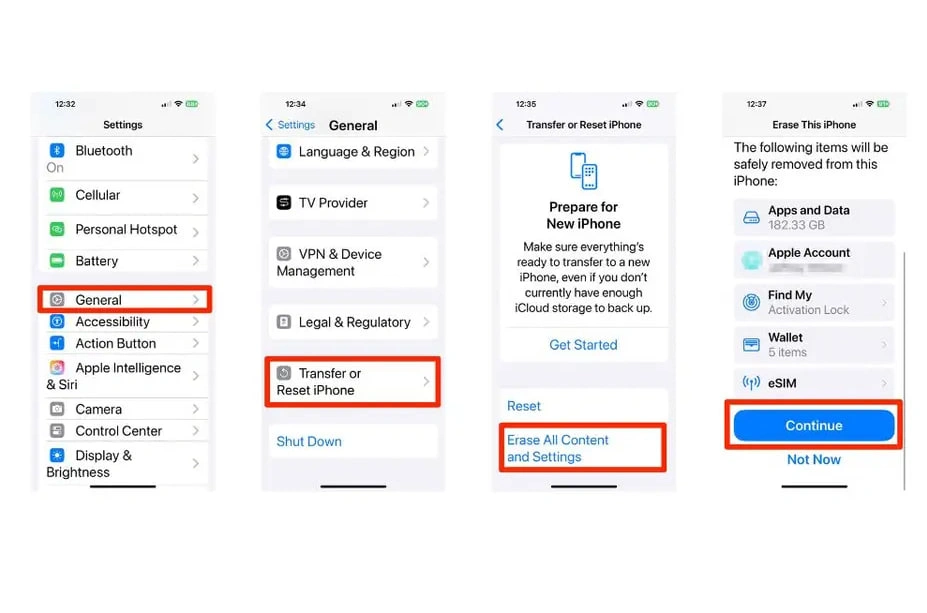
If you want to reset your phone without losing your plan, resetting an iPhone 15 or any other model follows the same steps:
- Go to Settings, then General, then Transfer or Reset iPhone.
- Tap Erase All Content and Settings, then Continue.
- On the option screen, iPhone displays two choices. Choose Keep eSIMs and Erase Data (marked as the Preferred Method).
- Enter your Apple ID password to turn off Activation Lock.
- Wait for the reset to finish. Your new iPhone setup screen, or your same device restarting fresh, confirms it worked.
How to keep eSIM and erase data on Android
If you want to erase your eSIM and delete data from an Android phone, the steps vary by brand. Samsung, Google Pixel, Motorola, and others all label things slightly differently. But the general path to reset your phone without losing the eSIM looks like this:
- Go to Settings, then System or General Management.
- Tap Reset or Reset Options, then Erase All Data (factory reset).
- If you see a toggle to retain your eSIM profiles, labeled “Keep eSIMs” or similar, make sure it’s switched on, not set to choose to erase it by default.
- Confirm the reset.
On some Android devices, keeping an eSIM happens by default with no toggle shown at all. If you don’t see an option to keep your eSIM, that often means it’s already set to stay through the reset. If your phone while keeping the eSIM still shows no cellular service afterward, check your specific device’s support page to confirm its default behavior.
Yesim tip: write down or screenshot your Yesim QR code before you reset any phone, Android included. If the eSIM doesn’t survive the reset for any reason, you’ll have it ready to reinstall in seconds instead of digging through old emails.
Before you erase the eSIM: a pre-reset checklist
Need to factory reset your iPhone or Android soon? Do these steps first, no matter which option you plan to choose. Protect your personal data while keeping your eSIM, or keep the data while your eSIM profile stays active, either way the result depends on getting this part right:
- Back up the phone through iCloud or Google Backup.
- Sign out of your Apple ID or Google account ahead of time to avoid Activation Lock.
- Unpair your Apple Watch and any other connected devices.
- Save your original eSIM QR code or your provider app login, in case something goes wrong.
- Make sure the phone is charged or plugged in.
Read also: Check Device Compatibility with eSIM, before buying a new phone or replacing an old one.
Keep eSIM and erase data: comparison table
The two options differ on every point that matters:
| Keep eSIMs and Erase Data | Delete eSIMs and Erase Data | |
|---|---|---|
| What happens to your cellular plan | Stays active, no reactivation needed | Removed completely from the device |
| Best for | Keeping the same phone for yourself | Selling, trading in, or giving away the phone |
| Risk if you choose wrong | Minimal, easy to delete later if needed | New owner could see your plan, or you lose your own connection |
| How hard to recover | Not applicable, nothing was removed | Requires contacting your carrier or provider for a new QR code |
Common mistakes to avoid when resetting an eSIM phone
Most eSIM problems during a reset come down to one of these:
- You pick an option on autopilot without reading the screen carefully.
- You skip the backup step before resetting.
- You assume Android behaves the same way across every brand, but menu names and default behavior both vary.
- A local, encrypted backup can quietly remove the eSIM, even if you never chose the delete option during a reset. If you restore from a local backup instead of resetting through the usual screen, confirm your eSIM can be easily reinstalled first.
- Delete an eSIM tied to your main number without checking your carrier’s reissue policy first, and you could be stuck. Some prepaid and MVNO carriers make it slow or difficult to issue a new eSIM without contacting support directly. Move your number to another device beforehand if you have the option, it’s safer.
If you’re selling or giving away a phone soon, check Apple support or your Android maker’s own help pages for the exact wording your model uses. Screen layouts shift between software versions.
Can I recover an eSIM if I accidentally delete it during a reset?
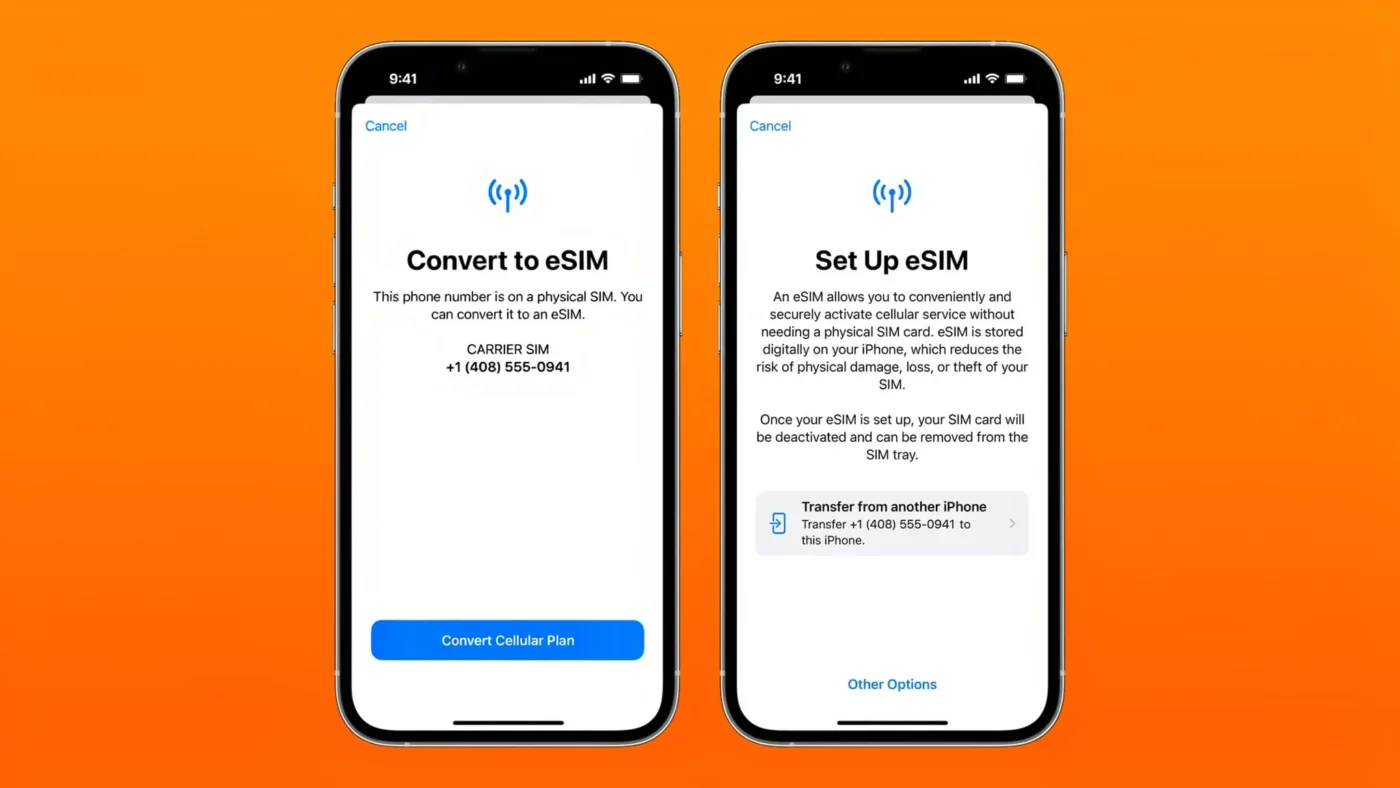
Usually yes, though it takes a bit of time. If your eSIM erase happened by accident, not on purpose, the fix follows the same three steps every time:
- If you need to contact your carrier or eSIM provider, request a new QR code or activation link.
- For a travel eSIM like Yesim, open the provider’s app and reinstall the plan from there, if your plan terms allow it.
- Expect the process to take some time and need a Wi-Fi connection. Once it’s done, cellular service should continue working like normal.
An eSIM doesn’t disappear forever just because it was deleted by mistake. It just needs reissuing through the same channel it came from.
How do I turn off my eSIM and switch back to a physical SIM?
This is a different question from resetting your phone, and it doesn’t require erasing anything. Go to your phone’s cellular or mobile data settings, select the eSIM line, and turn it off or set your physical SIM as the primary line instead. For the full process of deleting an eSIM from an iPhone specifically, as opposed to keeping it through a reset, Apple’s own support documentation covers that separately.
Conclusion: keep eSIM and erase data, or delete it?
One rule covers almost every case. Keep the phone yourself, and you choose “Keep eSIM and erase data,” so your mobile plan stays active with nothing to set up again. Hand the phone to someone else, sell it, or trade it in, and you choose “Delete eSIMs and erase data” instead.
People sometimes search this as “keep eSIM and delete,” mixing both actions into one phrase, but the screen only ever offers one or the other, never both at once. Either way, reset your iPhone without guessing which button to press. The rule above settles it every time.
If your eSIM was deleted by mistake, or you need a new travel plan for your next trip, Yesim’s app makes reinstalling or buying a plan quick. The compatibility checker confirms a new phone supports eSIM before you buy one.









 Vika Laki


 Yesim Team