

 Max Pankratov
You install an eSIM, and the screen just shows “Activating.” The spinning icon doesn’t move. Minutes pass. The worry builds, especially at an airport or right after you land somewhere new.
Take a breath first. An eSIM stuck activating almost never means your phone is broken or your eSIM is dead. The cause is usually one of a handful of common, fixable issues. This guide covers eSIM stuck on activating iPhone fixes and eSIM stuck on activating Android fixes separately. It explains why is my eSIM stuck on activating in plain terms, decodes specific error messages, and covers when to stop troubleshooting and contact support instead.
Is it normal for your eSIM to show “Activating”?
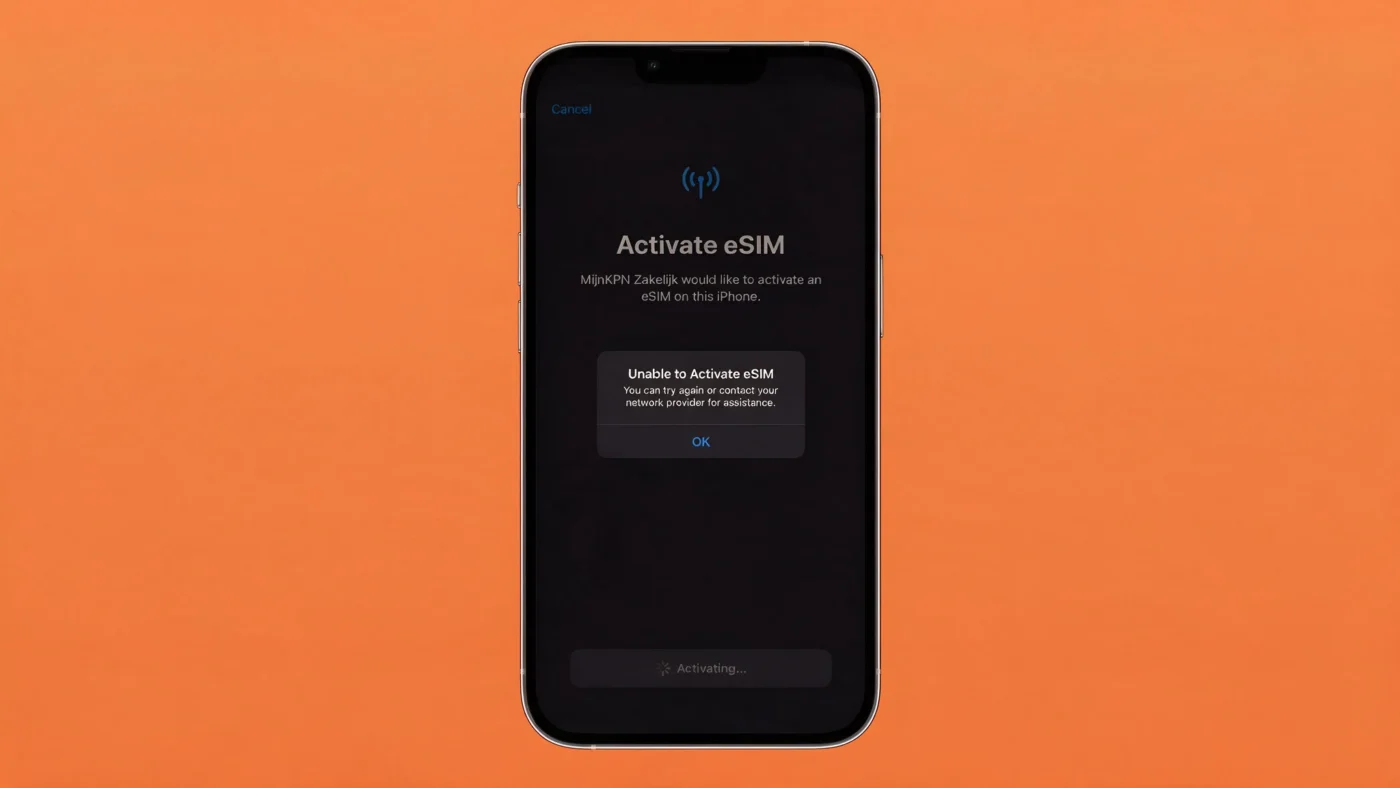
It depends on timing. If you installed a travel eSIM before your trip, seeing “Activating” is expected. If you’re already at your destination and it’s been sitting like that for a while, it’s worth a closer look.
Before you travel: activating is expected
Many travel plans can’t finish registering with a network until your phone connects to a partner network at your destination. Install the eSIM at home over Wi-Fi ahead of time. That’s normal, and it’s what we recommend. A stuck-looking “Activating” status before you fly isn’t a sign of a problem.
After you arrive: when to start worrying
Once you’ve landed, the status should change within a few minutes. That’s usually 3 to 15 minutes, depending on how busy the local network is. If it hasn’t changed after that window, move on to the fixes below.
Read also: What Is an SM-DP+ Address? for the technical details behind profile download.
Why is my eSIM stuck on activating? Common causes
An eSIM activation stuck on a phone stuck on activating eSIM status usually comes down to one of a few predictable reasons. Most trace back to carrier provisioning, the QR code, or the network registration step. Your device is rarely the actual problem.
Yesim tip: if your Yesim eSIM is stuck, open the app first and check your plan’s status there before touching any phone settings. It often tells you right away if the issue is on the network side.
Weak or unstable internet connection
Activation needs a stable connection to reach the SM-DP+ server. Your phone uses that connection to download and confirm your eSIM profile. Spotty public Wi-Fi at airports and cafes is a classic cause of QR code activation stalling halfway through.
Carrier-side provisioning delay
Sometimes activation depends on how busy the carrier’s own servers are, not anything you did. The only fix here is to wait.
Carrier-locked device
A phone locked to one carrier can block an eSIM from a different provider, even with a correctly scanned QR code. If you suspect this, unlock your phone for eSIM use covers the full process.
Outdated iOS/Android software or carrier settings
An old OS version or outdated carrier settings can carry bugs that block activation. A simple software update often fixes it without any other action.
Expired or already-used QR code
Most eSIM QR codes work exactly once. A code already scanned on another device, even by accident, stalls activation. The same goes for a code that’s simply expired. Either way, you’ll usually see a direct error.
Wrong line set as cellular data or conflicting profiles
With several eSIM profiles installed, your phone can get confused about which one should handle data. That confusion can look exactly like a stuck activation.

Quick universal fixes (try these first)
Before you search how to remove eSIM stuck on activating iPhone settings, try these fixes first, they work the same way on iPhone and Android:
- Use the Airplane Mode toggle, on then off. This forces your phone to search for the network again.
- Restart your phone completely. This clears temporary glitches.
- Switch to a stronger Wi-Fi connection, or try a mobile hotspot instead.
- Check that data roaming is turned on, required for most travel plans.
- Wait 10 to 15 minutes if nothing looks obviously wrong yet.
How to fix an eSIM stuck on activating on iPhone
Work through these in order:
- Go to Settings, then Cellular, select the eSIM line, and toggle Turn On This Line off, then on again. Don’t delete the profile.
- Check for a carrier settings update under Settings, then General, then About.
- Confirm date and time are set to automatic under Settings, then General, then Date & Time.
- If needed, reset network settings: Settings, then General, then Transfer or Reset iPhone, then Reset Network Settings.
- Update iOS to the latest version.
Check your carrier lock status on iPhone
This takes less than a minute:
- Go to Settings, then General, then About.
- Scroll to Carrier Lock.
- “No SIM restrictions” means your phone is unlocked. A carrier name listed there means it’s locked. Contact that carrier instead of continuing to troubleshoot on your own.
Yesim tip: before trying anything more advanced, double-check your eSIM line is selected for cellular data. This single setting gets missed more often than people expect.
How to fix an eSIM stuck on activating on Android
Menu names vary by brand, but the fix logic stays the same:
- Toggle Airplane Mode and restart the device, the same first step as iPhone.
- Clear the cache for the Carrier Services app: Settings, then Apps, then Carrier Services, then Storage, then Clear Cache.
- Check and reset APN settings if needed: Settings, then Connections or Network, then Mobile Networks, then Access Point Names.
- Confirm the eSIM line is turned on in your SIM manager. On Google Pixel, that’s Settings, then Network & Internet, then SIMs. On Samsung, it’s Settings, then Connections, then SIM Manager.
- Install any available system updates.
Decoding specific error messages
If you’re seeing an exact error message instead of a plain “Activating” spinner, this table tells you what it usually means and what to do.
| Error message | Likely cause | What to do |
|---|---|---|
| “Activating…” (no error) | Normal processing, or a slow network | Wait 10 to 15 minutes, then try the universal fixes |
| “Unable to Activate eSIM” | Temporary carrier-side issue or connection drop | Restart your phone and retry on a stable connection |
| “Activation Failed” | Similar to above, often a connection or server hiccup | Switch networks, wait a few minutes, retry |
| “SIM Not Supported” | Almost always a carrier lock | Check your lock status and contact that carrier |
| “Invalid Code” or “Cannot Add Plan” | QR code already used or expired | Request a new code from your provider |
| “Activated but No Internet / No Service” | Profile is active, but not registered with a network yet | Toggle Airplane Mode, confirm data roaming is on |
Should you delete an eSIM stuck on activating?
No, not as a first step. Many QR codes and activation codes work only once. Delete the profile too soon, and you could lose the plan entirely, with no way to reinstall using the same code.
Only delete and reinstall once your provider has confirmed they can reissue the code or profile. Follow this order:
- Toggle the line off and on first, without deleting anything.
- Restart the phone.
- Contact support and ask directly before deleting or reinstalling.
When to contact your eSIM provider
Reach out to support once any of these apply:
- The status hasn’t changed in over 24 hours.
- You keep seeing “Unable to Activate eSIM” or “Activation Failed” repeatedly.
- The QR code shows as invalid or already used.
- The profile was previously installed, deleted, or moved to another device.
- Your plan doesn’t show as active in your account.
Before you contact support, have this ready:
- Your order number
- Device model and OS version
- IMEI and EID numbers
- A screenshot of the exact error
How to avoid this on your next trip
A few habits prevent most activation headaches:
- Install your eSIM at home on stable Wi-Fi, 24 to 48 hours before you fly.
- Check your device’s eSIM compatibility and confirm it’s unlocked before you travel.
- Keep your phone’s OS updated.
- Read your provider’s instructions to see if your plan activates before or after you land, so you know what to expect.
Conclusion: getting back online fast
An eSIM stuck on “Activating” is almost never a dead end. A simple universal fix solves most cases. The tougher ones get resolved through your provider’s support team, no profile deletion required.
For your next trip, download the Yesim app and get set up with clear instructions and responsive support. Explore Yesim eSIM plans before you fly.









 Vika Laki


 Yesim Team