
 Max Pankratov
Your phone shows “SOS” or “SOS Only” in the status bar where the signal bars should be. Calls to regular numbers are not connecting. Data is not working. And you have no idea what changed since the last time you used it.
This is one of the most common network problems iPhone users report, and it confuses people because the label “SOS” sounds like something you triggered intentionally , when in reality your phone put itself into this mode because it lost access to your carrier’s network. The good news: in most cases, SOS mode is fixable in under five minutes without visiting a store or calling your carrier.
Why my phone says SOS and why does iPhone say SOS are two of the most common questions. This guide covers exactly what SOS means on iPhone and Android, every common reason it happens, and step-by-step fixes ordered from fastest to most involved.
What does it mean when your phone says SOS? What does SOS mean on iPhone and Android?
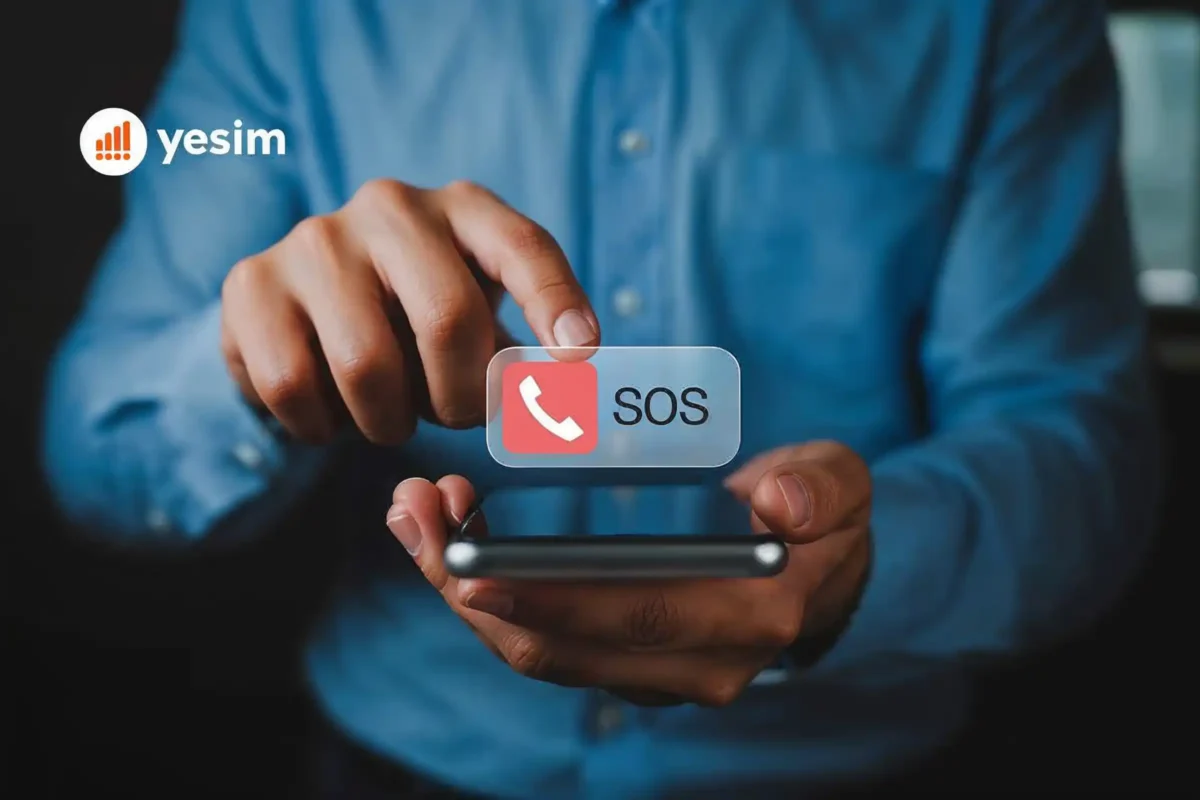
SOS mode means your phone has lost connection to your regular carrier network but can still reach an emergency services network. In this state, your phone can only make emergency calls (911 in the US, 999 in the UK, 112 in Europe) , not regular calls, texts, or data connections.
On iPhone, you will see “SOS” or “SOS Only” displayed in the top-right corner of the screen where the signal bars normally appear. On Android, the equivalent message is usually “Emergency Calls Only” or “No Service” depending on the manufacturer and Android version.
The difference between SOS and No Service: “No Service” means your phone cannot reach any network at all , not even emergency services. SOS or SOS Only means your phone has found at least one network capable of handling emergency calls, but your regular carrier is not available. SOS is technically a partial connection, not a complete signal loss.
Can you make calls in SOS mode?
You can dial emergency services. You cannot make regular phone calls, send texts, use mobile data, or receive incoming calls. WhatsApp and other messaging apps that rely on data also stop working.
Why does my phone say SOS?
The SOS status appears when your phone cannot authenticate your SIM card or eSIM profile with a carrier network. Several different problems cause this , some hardware-related, some software-related, and some completely external to your device.
- You are outside your carrier’s coverage area. The most common cause, and the one that requires no fix, just moving. Rural areas, underground spaces (subway tunnels, basements), and areas between cell towers can drop your carrier signal entirely. Emergency networks have wider coverage than commercial carrier networks, which is why SOS appears rather than No Service.
- Your SIM card has a problem. A damaged, loose, or dirty SIM card cannot authenticate with your carrier. If you dropped your phone recently or the SIM tray was disturbed, this is worth checking. Dust on the SIM card contacts also causes authentication failures.
- Your eSIM profile is inactive or corrupted. On phones using eSIM technology, the carrier profile stored on the embedded chip can become inactive after a software update, a carrier settings update, or a plan change. The phone has the eSIM chip but no valid profile to authenticate , so it falls back to SOS mode. This is one of the most common eSIM-specific problems and is fixed by reinstalling the eSIM profile.
- Your mobile plan has expired or been suspended. A prepaid plan that ran out of credit, a postpaid plan with an overdue payment, or an account suspended for any reason will cause your carrier to block your SIM from the network. The hardware is fine, the signal is present, but your account has no active service , so the phone shows SOS.
- You are roaming in a country your plan does not cover. International roaming problems are a frequent cause of SOS mode for travellers. If your carrier plan does not include roaming in the country you are visiting, or if data roaming is disabled in your phone settings, the phone cannot connect to a local network through your carrier and shows SOS instead.
- Your carrier is experiencing an outage. Carrier connection problems including carrier network outages cause mass SOS reports. When Verizon, AT&T, or T-Mobile have a regional outage, every customer in the affected area simultaneously loses their carrier connection and sees SOS. This resolves on its own when the carrier restores service.
- A software bug or iOS/Android update issue. iOS updates occasionally introduce carrier settings conflicts that cause SOS mode after the phone restarts. This is more common after major iOS version updates. A second restart, or updating carrier settings, usually resolves this.
- Dual-SIM conflict. On phones running two SIM cards simultaneously (physical SIM plus eSIM, or two physical SIMs), a misconfiguration between the two lines can cause one or both to show SOS. If the phone is trying to use a line for data that is not set up for data roaming, SOS can appear on that line.
Why does my iPhone say SOS only?
When your iPhone says SOS Only, the phone has specific SOS-related behaviour that differs from Android, introduced and modified across iOS versions.
- iPhone SOS Only behaviour on iOS 16 and later: Apple changed the SOS display in iOS 16. On older iOS versions, the phone showed a signal strength indicator that might show zero bars or “No Service.” From iOS 16 onward, Apple replaced this with the more informative “SOS Only” label, which explicitly tells you that emergency calls are still possible. This is why many users noticed SOS appearing “for the first time” after an iOS update , the underlying situation (carrier signal lost) was the same, but the display changed.
- iPhone eSIM and SOS: iPhones from XS (2018) onward support eSIM. For an iPhone SOS only fix on eSIM-only iPhones (iPhone 14 and later purchased in the USA), there is no physical SIM card as a fallback. If the eSIM profile becomes inactive, the phone goes directly to SOS because there is no alternative SIM to fall back on. This makes eSIM profile maintenance more critical on US-model iPhone 14 and later than on earlier dual-SIM models.
- iPhone SOS after international travel: A very common scenario: you return from a trip abroad, your phone shows SOS, and you cannot make calls. The cause is usually that roaming data was enabled on a secondary eSIM line during the trip and the primary line’s settings were disrupted. Toggling the primary line off and on in Settings → Cellular resolves this in most cases.
For a full guide to how iPhones handle eSIM across carriers, see which iPhones support eSIM, including model-specific dual-SIM behaviour.
Why is my phone showing SOS at the top?
Why does my iPhone say SOS at the top? The SOS indicator appears in the status bar , the strip at the very top of your screen , specifically in the area where signal bars normally display. If you are seeing SOS at the top of your screen rather than signal bars, it means the status bar is reporting carrier signal loss.
Temporary SOS at the top (resolves on its own):
- Moving through a low-coverage area (tunnel, rural stretch, basement).
- Brief carrier network hiccup that self-corrects within seconds.
- Phone searching for a new cell tower after you move.
Persistent SOS at the top (requires a fix):
- SIM card issue, eSIM problem, account suspension, or carrier outage.
- Any of the causes listed in the previous section.
The fastest first test: walk outside to an open area with clear sky. If SOS disappears and signal bars return, you were simply in a coverage gap and nothing is wrong with your phone or account.
How to fix SOS only on iPhone and Android
This mobile network troubleshooting guide covers every fix in order. Most SOS issues resolve at step 1 or 2.
- Step 1. Restart your phone. Most iPhone network issues including SOS are resolved by a restart that forces your phone to re-register with the carrier network from scratch. This fixes the majority of SOS cases caused by software glitches, brief outages, and post-update conflicts. Hold the power button, power off completely, wait 10 seconds, power back on.
- Step 2. Toggle airplane mode. Swipe to Control Centre (iPhone) or notification shade (Android) and enable Airplane Mode for 15 seconds, then disable it. This forces an immediate network re-scan and re-registration without a full restart. Faster than a restart and equally effective for temporary network drops.
- Step 3. Check your carrier settings update (iPhone). Go to Settings → General → About. If a carrier settings update is available, a pop-up appears immediately asking you to install it. Tap Update. Carrier settings updates fix compatibility issues between your iPhone and the carrier network and are one of the most common SOS fixes after an iOS update.
- Step 4. Check data roaming settings. Go to Settings → Cellular → [your primary line] → Data Roaming. If you are travelling internationally and Data Roaming is off, your phone cannot connect to a local network and shows SOS. Turn Data Roaming on for the line you want to use for data. For a detailed walkthrough of data roaming toggles on both iPhone and Android, see how to turn on or turn off data roaming.
- Step 5. Check your account status. Call your carrier from a landline or Wi-Fi call to confirm your plan is active and has credit. A suspended account or depleted prepaid balance shows SOS regardless of how good the network signal is.
- Step 6. Remove and reinsert your SIM card. Power off your phone. Eject the SIM tray with the SIM tool (or a straightened paperclip). Remove the SIM card, gently clean the gold contacts with a dry cloth, reinsert carefully, and power on. A slightly misaligned SIM card frequently causes SOS.
- Step 7. Reinstall your eSIM profile. If your phone uses eSIM and the SOS problem appeared after a software update or plan change, the eSIM profile may need to be reinstalled. Contact your eSIM provider’s customer support , most provide a new QR code within minutes for re-installation. On iPhone: Settings → Cellular → [eSIM line] → Remove Cellular Plan, then reinstall via the new QR code. For guidance on eSIM installation across different devices, see the full compatible devices list with device-specific setup instructions.
- Step 8. Reset Network Settings. This is a more aggressive fix that clears all saved Wi-Fi passwords, VPN configurations, and cellular settings. Use it if earlier steps have not worked.
- iPhone: Settings → General → Transfer or Reset iPhone → Reset → Reset Network Settings
- Android: Settings → General Management → Reset → Reset Network Settings
- Step 9. Update iOS or Android. If your phone is running an older software version and the SOS problem started after a recent iOS or Android release, updating to the current version often includes carrier connectivity fixes. Settings → General → Software Update (iPhone) or Settings → System → System Update (Android).
- Step 10. Contact your carrier. If your phone is stuck on SOS and none of the above steps resolve the SOS problem, the issue is most likely account-level (suspension, fraud flag, porting error) or requires a SIM card replacement. Contact your carrier directly.

SOS mode and eSIM problems
eSIM introduces a specific set of SOS causes that do not apply to physical SIM cards. Understanding them helps diagnose the problem faster.
- Inactive eSIM profile. eSIM no signal situations happen when an eSIM profile becomes inactive when a prepaid plan expires, a carrier pushes an incompatible settings update, or the phone undergoes a factory reset without backing up the eSIM profile. The eSIM chip is present and functional, but it has no valid carrier profile to authenticate with , so the phone shows SOS. Fix: contact your eSIM provider for a new QR code and reinstall the profile.
- eSIM carrier not available in your current location. International travel eSIMs connect through local partner networks. If your travel eSIM’s carrier does not have a roaming partner in the country you are visiting, or if the partner network has an outage, the eSIM shows SOS. Fix: check whether your eSIM provider covers your destination country, or switch to a local eSIM. For eSIM coverage across 200+ countries, see yesim.app.
- Dual-SIM line conflict. On a phone running both a physical SIM and an eSIM, mismatched settings between the two lines can cause SOS on one or both. The most common scenario: data is assigned to the eSIM line but Data Roaming is off on that line, while the physical SIM line has Data Roaming on but the plan is not active abroad. Fix: go to Settings → Cellular and set one line as the clear default for both calls and data, with Data Roaming enabled on that line specifically.
- eSIM plan expired mid-trip. A prepaid travel eSIM with a fixed validity window (7 days, 15 days, 30 days) expires on the last day of the plan. When it expires, the phone loses its data connection and shows SOS if there is no fallback SIM. Fix: top up or purchase a new plan through your provider’s app. Most providers allow instant top-up without reinstalling the eSIM.
For a broader explanation of how eSIM technology works and why it sometimes conflicts with carrier networks, see what is eSIM.
When SOS means a carrier outage
If your phone suddenly shows SOS and none of the individual device fixes work, the cause may be a carrier outage rather than anything wrong with your phone or account. Carrier outages are temporary and resolve without any action on your part.
How to check if your carrier is down:
- Search “[carrier name] outage” on Twitter/X , affected users report problems in real time.
- Visit Downdetector.com and search your carrier name for live outage reports.
- Check your carrier’s official status page (T-Mobile: T-Mobile.com/support, AT&T: att.com/outages, Verizon: verizon.com/support).
What to do during a carrier outage: Connect to Wi-Fi and use Wi-Fi calling if your carrier supports it. Enable Wi-Fi Calling in Settings → Cellular → Wi-Fi Calling (iPhone) or Settings → Connections → Wi-Fi Calling (Android). This routes calls and texts through your Wi-Fi connection rather than the cellular network, restoring communication even when your carrier is down.
How to prevent SOS network problems
- Keep carrier settings updated. On iPhone, carrier settings updates are pushed silently and installed when you tap Update in the Settings → General → About prompt. Do not dismiss these updates , they maintain compatibility between your iPhone and your carrier’s network configuration.
- Do not let prepaid plans expire unnoticed. Set a reminder before your prepaid plan or travel eSIM expires. An expired plan causes SOS immediately, which is particularly disruptive when it happens during travel.
- Configure roaming settings before you travel. Before departing for an international trip, confirm Data Roaming is enabled on the SIM or eSIM line you plan to use abroad. Check that your carrier’s plan covers your destination or that you have a travel eSIM active for that country.
- Avoid dual-SIM confusion. If your phone runs two lines, explicitly set one as the default for data, one as the default for calls, and confirm roaming settings on each line independently. Phones do not always pick the right line automatically when both are active.
The bottom line
SOS or SOS Only on your phone is almost always a network connectivity problem, not a hardware failure. The causes range from simple coverage gaps to SIM issues, expired plans, roaming configuration errors, and carrier outages, all of which are resolvable without visiting a repair shop.
Start with the fastest fixes: restart, toggle airplane mode, check carrier settings. If those do not work, verify your account is active and your roaming settings are correct for your location. If you are on an eSIM and the problem appeared after an update or plan change, reinstalling the eSIM profile through your provider fixes it in under five minutes.
If you travel internationally and SOS keeps appearing, the most reliable long-term solution is a dedicated travel eSIM from a provider like Yesim that covers your destinations and activates before you land , so your phone never shows SOS at the airport. Browse plans at yesim.app.










 Yesim Team