
 Max Pankratov
Yes, the iPhone 11 supports eSIM, across the base model, the 11 Pro, and the 11 Pro Max. Does iPhone 11 have eSIM regardless of which version you own? In every case except one regional exception, yes.
There’s a regional exception worth knowing before you rely on it, and a few practical limits on how many profiles you can run at once. This matters whether you’re buying a used iPhone 11, planning a trip and want to add a travel eSIM, or switching from a physical SIM for the first time.
This guide covers compatibility by model, the eSIM limits, step-by-step activation, and what to check if it’s not working.
Does the iPhone 11 have eSIM?
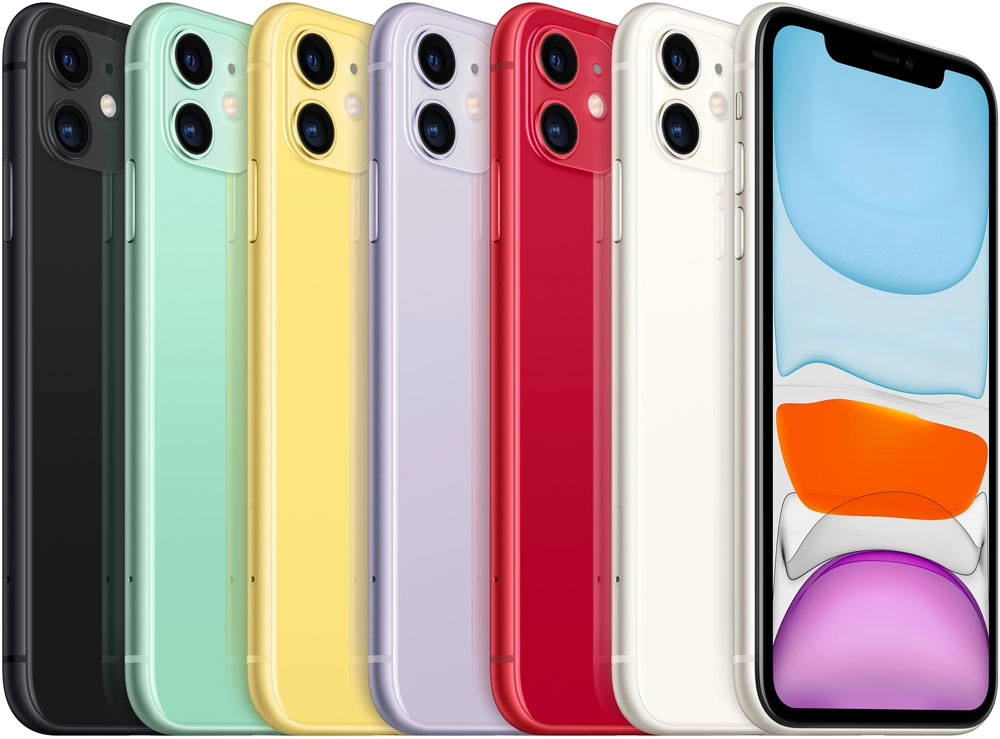
Yes. Does iPhone 11 support eSIM across the whole lineup? It does. The one exception: models originally sold in mainland China ship without eSIM support, due to local carrier restrictions in that market. If your iPhone 11 was purchased and activated outside mainland China, eSIM support is standard.
iPhone 11 eSIM compatibility
Does iPhone 11 take eSIM in its base configuration? Yes, alongside a physical nano-SIM, giving you dual SIM functionality out of the box.
iPhone 11 Pro eSIM compatibility
Does iPhone 11 Pro have eSIM the same way the base model does? Yes, with no differences in capability between the two.
iPhone 11 Pro Max eSIM compatibility
Does iPhone 11 Pro Max have eSIM as well? Yes, identically to the other two models in the lineup. Screen size and camera setup differ across the range, eSIM support doesn’t.
Read also: eSIM vs. SIM: What’s the Difference?
How many eSIMs can you use on an iPhone 11?
How many eSIMs can iPhone 11 have stored at once? Multiple, but only two lines can be active at once, and that includes any combination of a physical SIM plus an eSIM, or two eSIMs. Only one line handles cellular data at a time. Both lines can handle calls and texts simultaneously through Dual SIM Dual Standby, but data switches to whichever line you’ve set as primary.
Can iPhone 11 have eSIM and a physical SIM running together? Yes, that’s the standard dual SIM setup. In practice, this means you can keep your home number on the physical SIM and add a travel eSIM for data, without giving up either line while you’re away.
Yesim tip: if you’re adding a travel eSIM alongside your home SIM, set the new eSIM as your data line before you land, and leave your home SIM handling calls and texts. That way nothing switches unexpectedly once you’re connected to a new network.
iPhone 11 lineup: eSIM compatibility at a glance
For the full picture across every iPhone generation, not just the 11 series, see which iPhones support eSIM.
| Model | eSIM support | Max eSIM profiles stored | Known regional limitations |
|---|---|---|---|
| iPhone 11 | Yes | Multiple (2 active max) | No eSIM on mainland China models |
| iPhone 11 Pro | Yes | Multiple (2 active max) | No eSIM on mainland China models |
| iPhone 11 Pro Max | Yes | Multiple (2 active max) | No eSIM on mainland China models |
Read also: Why Does My Phone Say SOS.
How to activate an eSIM on iPhone 11
Wondering how to activate eSIM on iPhone 11 for the first time? The process takes a few minutes:
- Open Settings, then tap Cellular (or Mobile Data).
- Tap Add eSIM or Set Up Cellular.
- Scan the QR code provided by your eSIM plan or carrier.
- Wait for the profile to finish installing, usually under a minute.
- Choose which line handles calls, texts, and data by default.
Does eSIM work on iPhone 11 immediately after installation? Yes, as soon as the profile finishes installing and you select it as an active line. If you’re not sure your specific unit supports this process, check device compatibility before buying a plan.

Activating an eSIM manually, without a QR code
Some providers issue an activation code instead of a QR code, often through their own app. To use it:
- Open Settings, then Cellular, then Add eSIM.
- Choose Enter Details Manually instead of scanning.
- Enter the activation code, SM-DP+ address, or confirmation code provided by your carrier or provider’s app.
- Follow the same remaining steps as QR-based activation.
How to convert a physical SIM to an eSIM on iPhone 11
- Open Settings, then Cellular.
- Tap Convert to eSIM.
- Confirm the conversion when your carrier verifies the request.
- Restart your iPhone once the conversion completes.
Not every carrier or country supports this conversion feature. If it’s missing from your Cellular settings, your carrier likely doesn’t offer it yet, and you’ll need a fresh eSIM instead. For background on how eSIM differs from other SIM formats, see types of SIM cards for your smartphone.
Is your iPhone 11 carrier-locked?
A carrier-locked iPhone 11 can block eSIM profiles from a different provider, even though the hardware itself supports eSIM. To check your lock status:
- Open Settings, then General, then About.
- Scroll to Carrier Lock.
- “No SIM restrictions” means the phone is unlocked. Anything else means it’s tied to a specific carrier.
If your iPhone 11 turns out to be locked, unlocking it is usually the next step before a third-party eSIM will activate.
Read also: Best eSIM for International Travel.
What to do if eSIM is not working on iPhone 11
Work through these before assuming the phone itself has a problem:
- Confirm the profile shows as active under Settings, Cellular.
- Check whether your iPhone 11 was purchased in mainland China, where eSIM isn’t supported.
- Update to the latest iOS version, since older versions occasionally have activation bugs.
- Restart the phone after installing a new profile, even if it seemed to finish successfully.
- Confirm the phone isn’t carrier-locked to a different provider.
Yesim tip: if a profile fails to install on the first try, don’t scan the same QR code repeatedly. Most eSIM QR codes are single-use, and a second scan attempt can trigger an error even when the first install worked. Check Cellular settings for the profile before assuming activation failed.
Benefits of using an eSIM on iPhone 11
Why does iPhone 11 use eSIM instead of sticking with a physical card alone? A few practical reasons:
- Activates without a physical card, no store visit required.
- Lets you keep two numbers active, useful for separating work and personal lines.
- Makes international travel simpler: swap in a local data plan without hunting for a SIM counter.
- Switching or adding a new plan takes minutes, done entirely from the phone.
Conclusion
The iPhone 11 lineup is fully ready for eSIM, base model, Pro, and Pro Max alike. The differences that matter come down to where the phone was purchased and whether it’s carrier-locked, not the hardware itself. If you’re planning a trip, Yesim’s eSIM plans let you activate a local data profile before you fly, so your iPhone 11 is online the moment you land.









 Vika Laki


 Yesim Team