
 Max Pankratov
Every iPhone from XS onward supports dual SIM. iPhone is one of the most widely used dual SIM phones globally. On most models that means one physical nano SIM card plus one eSIM running simultaneously. On US-purchased iPhone 14 and later, there is no physical SIM slot at all , these devices run two eSIM profiles simultaneously. Both configurations give you two active phone numbers on one device. Apple dual SIM support covers iPhone eSIM dual SIM through the same eSIM chip used for travel eSIM profiles.
This iPhone dual SIM guide and dual SIM iPhone review covers which iPhone models support dual SIM, how to set it up, how to manage two lines in daily use, how to use dual SIM for travel, and how to fix the most common problems.
What is dual SIM on iPhone? iPhone dual SIM explained
Dual SIM on iPhone, how it works. Dual SIM means your iPhone can connect to two separate carrier networks at the same time, giving you two phone numbers on iPhone (iPhone two phone numbers), two data plans, or both. You can use one number for work and one for personal calls. You can keep your home carrier active while using a travel eSIM for data abroad. You can run a UK number and a US number on the same phone when living between two countries.
On iPhone, dual SIM works in two ways:
- Physical SIM + eSIM. The traditional dual SIM configuration on most international iPhone models. iPhone physical SIM and eSIM: one nano SIM card sits in the SIM tray; one eSIM profile is downloaded to the embedded chip. Both run simultaneously. This is the standard setup on international iPhone 13, 14, 15, and 16 models.
- Dual eSIM. US-purchased iPhone 14 and later have no physical SIM slot. Instead, they support two eSIM profiles active at the same time. Both numbers are digital profiles. No physical card required for either line.
Does iPhone have dual SIM support?
Yes, on all models from iPhone XS (2018) onward. The specific type of dual SIM varies by model and region.
Key rule: Which country the iPhone was purchased in determines the hardware configuration, not which country you use it in. A UK-purchased iPhone 15 has a nano SIM slot plus eSIM. A US-purchased iPhone 15 is eSIM-only. The software is identical; the hardware differs by market.
What dual SIM on iPhone cannot do:
- Both lines cannot make calls at the same time. If you are on a call with Line 1, Line 2 goes to voicemail.
- 5G is available on one active data line at a time (the other line can still receive calls and texts).
- You cannot use two physical SIM cards , iPhone does not have two physical SIM slots in any market.
Which iPhone models support dual SIM?
The table below covers every iPhone model with dual SIM support, including the specific configuration for US and international versions.
| Model | Dual SIM type (non-US) | Dual SIM type (US) | Notes |
|---|---|---|---|
| iPhone XS, XS Max, XR | nano SIM + eSIM | nano SIM + eSIM | First iPhones with eSIM dual SIM |
| iPhone 11, 11 Pro, 11 Pro Max | nano SIM + eSIM | nano SIM + eSIM | |
| iPhone SE (2nd gen, 2020) | nano SIM + eSIM | nano SIM + eSIM | eSIM support added to SE line |
| iPhone 12 series | nano SIM + eSIM | nano SIM + eSIM | |
| iPhone 13 dual SIM | nano SIM + eSIM | nano SIM + eSIM | All 13 models support dual SIM |
| iPhone SE (3rd gen, 2022) | nano SIM + eSIM | nano SIM + eSIM | |
| iPhone 14, 14 Plus | nano SIM + eSIM | Dual eSIM only | No physical SIM on US models |
| iPhone 14 Pro, 14 Pro Max | nano SIM + eSIM | Dual eSIM only | No physical SIM on US models |
| iPhone 15 dual SIM | nano SIM + eSIM | Dual eSIM only | |
| iPhone 15 Pro, 15 Pro Max | nano SIM + eSIM | Dual eSIM only | |
| iPhone 16 dual SIM | nano SIM + eSIM | Dual eSIM only | iPhone 16 dual SIM support |
| iPhone 16 Pro, 16 Pro Max | nano SIM + eSIM | Dual eSIM only | iPhone 16 Pro Max dual SIM |
eSIM iPhone compatibility: for iPhones not listed here (older than XS), no eSIM support and no dual SIM. See which iPhones support eSIM for the complete model list with iOS version requirements.
How to set up dual SIM on iPhone
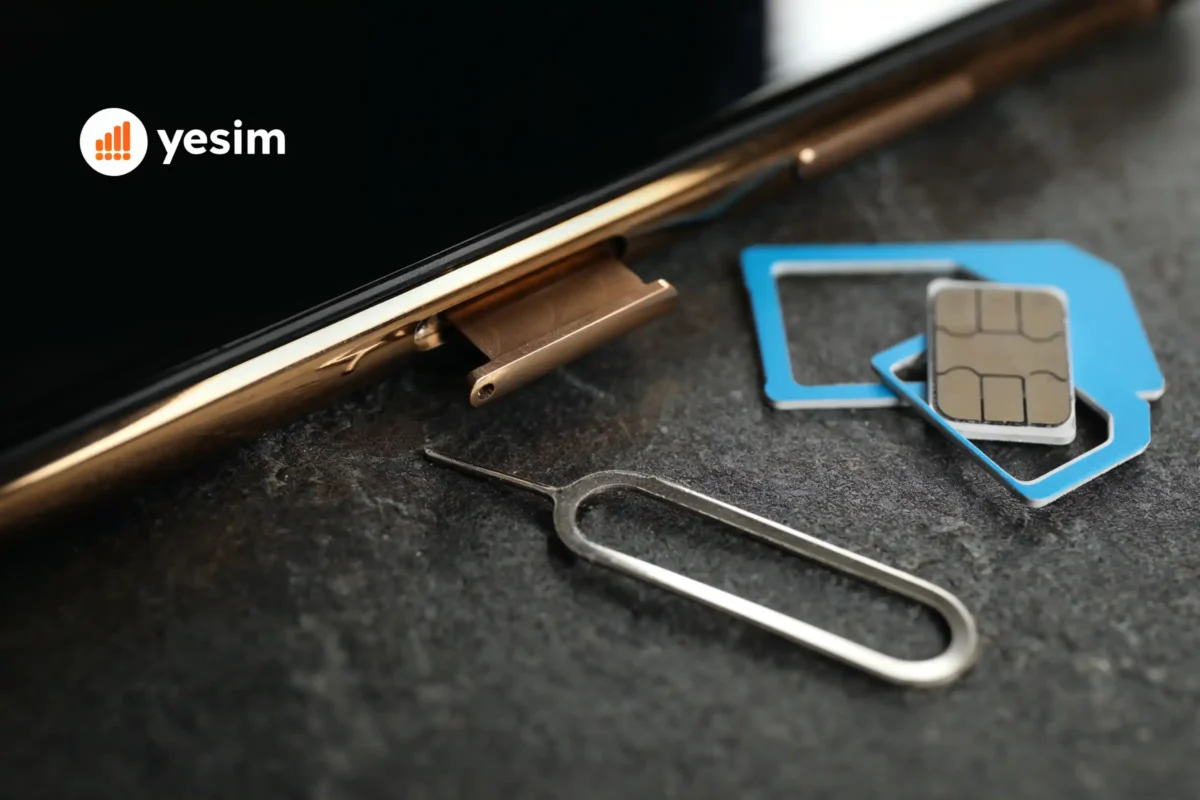
iPhone dual SIM activation: setting up dual SIM requires two steps: installing the eSIM and inserting the physical SIM (on models that have a SIM tray).
Step 1: iPhone eSIM setup, install an eSIM
- Open iPhone cellular settings: go to Settings → Cellular → Add eSIM.
- Choose your installation method:
- Use QR Code , scan the QR code from your eSIM provider.
- Enter Details Manually , type the activation code from your provider.
- Use Carrier App , if your carrier has a direct app activation.
- Follow the on-screen prompts to download and install the profile.
- Name the eSIM line when prompted (e.g., “Yesim Travel”, “Work”, “US Number”).
Step 2: Insert the physical SIM (if applicable)
On iPhones with a SIM tray (international models only), eject the tray with the SIM tool, insert the nano SIM card, and reinsert the tray. The physical SIM activates automatically once the tray is seated.
Step 3: Configure which line does what
iPhone dual SIM settings: go to Settings → Cellular. Both lines appear listed. Set:
- Default Voice Line: Which number makes outgoing calls.
- Cellular Data: Which line handles mobile data.
- Default for iMessage and FaceTime.
- Allow Cellular Data Switching: When enabled, iPhone uses the other line for data if the primary data line has no signal.
This last setting is useful for travel, if your home SIM has weak signal but your travel eSIM has strong local coverage, the phone switches data automatically.
How to use dual SIM on iPhone
How to use dual SIM iPhone: Calls. When making a call, iPhone shows which line will be used. To change lines for a specific call, tap the current line name before dialling and select the other line. Incoming calls ring on whichever line they are directed to.
- Messages. iMessage automatically selects the line associated with the recipient. SMS messages use your default line unless you specify otherwise. To change the line for a specific SMS conversation, open the conversation, tap the contact name at the top, and select the line to use.
- Mobile data. Only one line handles data at a time. Whichever line is set as the Cellular Data line in settings is active for mobile data. The other line can still receive calls and texts but does not use data unless you switch the data line.
- Personal and work numbers. This is the most common domestic dual SIM use case. One line holds your personal number; the other holds a work number. Assign the work line as default for daytime calls; switch the personal line default in the evening. Both numbers remain reachable simultaneously. Callers to either number hear it ring.
- Travel dual SIM setup. Keep your home nano SIM (or home eSIM profile) active for calls and texts on your regular number. Add a travel eSIM from Yesim or another provider and set it as the Cellular Data line. Your regular number stays reachable; data comes from the travel plan. When you return home, switch the data line back to your home SIM. See the best eSIM for international travel guide for travel eSIM plan recommendations by destination.
How to delete dual SIM on iPhone (remove an eSIM)
Deleting an eSIM profile removes it permanently from the device. You will need a new QR code from your provider to reinstall it.
- Go to Settings → Cellular.
- Tap the eSIM line you want to remove.
- Scroll down and tap Remove Cellular Plan.
- Confirm deletion.
Important: This deletes the profile from your device, not from your provider’s account. Your plan remains active on the provider’s side. To reinstall the eSIM on the same or a different device, contact your provider for a new QR code.
Turning off a line without deleting it: If you want to temporarily deactivate a line without deleting the profile, go to Settings → Cellular → [line name] → Turn Off This Line. The profile stays on the device; the line is inactive until you turn it back on. No QR code needed to reactivate.
Dual SIM iPhone for travel
iPhone dual SIM travel: travel is where iPhone dual SIM delivers the clearest practical value. iPhone dual SIM with eSIM: the standard travel setup
- Your home nano SIM (or home eSIM profile) stays active on your regular number.
- You add a travel eSIM from a provider like Yesim before departure.
- Set the travel eSIM as the Cellular Data line.
- Enable Data Roaming on the travel eSIM line specifically.
With this configuration, your home number stays live for incoming calls, WhatsApp, banking alerts, and any app tied to your regular number. All mobile data in your destination runs through the travel eSIM at local network rates, with no home carrier roaming charges.
What to configure before travelling:
- Enable Data Roaming on the travel eSIM line: Settings → Cellular → [travel eSIM] → Data Roaming → On.
- Disable Data Roaming on the home SIM line: Settings → Cellular → [home SIM] → Data Roaming → Off.
This second step is critical. If data roaming is enabled on both lines, your phone can accidentally switch to the home SIM for data and generate unexpected roaming charges.
For the full data roaming toggle guide on both lines, see how to turn on or turn off data roaming.
Read also: What is eSIM, how eSIM technology works and why it is the standard approach for dual SIM travel setups on modern iPhones.
eSIM vs physical SIM on iPhone
For domestic single-carrier use, a physical SIM is simpler. For international travel, eSIM wins: it installs before you leave, it does not replace your home SIM, and it switches between destinations in minutes rather than hours.
| Feature | Physical nano SIM | eSIM |
|---|---|---|
| Setup | Insert card into tray | QR code scan, under 2 minutes |
| Carrier switching | New card required | New QR code, instant |
| Available before arrival | No | Yes, buy before departure |
| Risk of loss or damage | Yes | No |
| Works on US iPhone 14+ | No (no SIM tray) | Yes |
| Keeps home number active | Yes (when dual SIM) | Yes (when dual SIM) |
| Supported countries | All | 200+ via travel eSIM providers |
Common dual SIM iPhone problems and fixes when iPhone dual SIM not working
- One line shows “No Service” after setting up dual SIM. Check that data roaming is configured correctly for each line. If the affected line has no domestic coverage in your location (e.g., a home UK SIM in the USA with roaming off), it will show No Service because it cannot reach its home network. This is expected behaviour , the SIM is inactive for data in that location.
- Calls going to the wrong line. iPhone sometimes defaults to the last-used line for outgoing calls. Go to Settings → Cellular → Default Voice Line and explicitly set which number to use. For individual calls, confirm the line shown before tapping the call button.
- eSIM not connecting after landing internationally. Toggle airplane mode off and on immediately after landing. This forces a network scan and connects the eSIM to the local carrier. Also confirm Data Roaming is enabled on the eSIM line: Settings → Cellular → [eSIM line] → Data Roaming → On.
- Dual SIM battery drain. Running two active SIM lines consumes more battery than running one , both radios remain active. On a long flight or a day with limited charging options, turning off one line temporarily (Settings → Cellular → [line] → Turn Off This Line) extends battery life without deleting the profile.
- eSIM QR code scan fails. Scan at home on stable Wi-Fi, not at the airport on congested terminal Wi-Fi. The QR code is single-use, a failed partial scan on a poor connection may invalidate it. If the scan fails, contact your eSIM provider’s support for a replacement code.
Best iPhone for dual SIM users
- Best for travellers (international model): iPhone 15 or 16. The iPhone 15 and 16 have excellent battery life, fast processors for real-time translation and navigation apps that run heavily during travel, and a nano SIM slot on international models giving maximum flexibility. The standard iPhone 15 and 16 (non-Pro) offer the best combination of price and dual SIM usability for most travellers.
- Best for US residents: iPhone 14, 15, or 16 (US model, dual eSIM). US-purchased iPhones from 14 onward are dual eSIM. For US residents who want to add a travel eSIM to their regular plan, this works perfectly. No SIM tray means nothing to eject or lose.
- Best for work/personal split: any iPhone from 13 onward. iPhone 13 supports dual SIM in all markets and has strong battery life for all-day use with two active lines. If budget is a consideration, the iPhone 13 (or 13 mini) is the most cost-effective dual SIM iPhone available.
Check your specific model: For eSIM support and dual SIM configuration by exact model, see the full compatible devices list.

The bottom line
Dual SIM on iPhone is practical, well-implemented, and available on every iPhone from XS onward. The setup takes under five minutes. The travel use case, keeping your home number live while using a local data plan, is the most common reason people use it and the one where it saves the most money.
The one thing to know before buying a US-market iPhone 14 or later: no physical SIM slot. If you rely on a nano SIM from your carrier, buy an international model or confirm your carrier supports eSIM before choosing a US-purchased device.
For dual SIM on iPhone how it works in travel, and travel eSIM iPhone setup, Yesim covers 200+ countries with plans that install in under two minutes directly to your iPhone. Browse plans at yesim.app.