 Max Pankratov
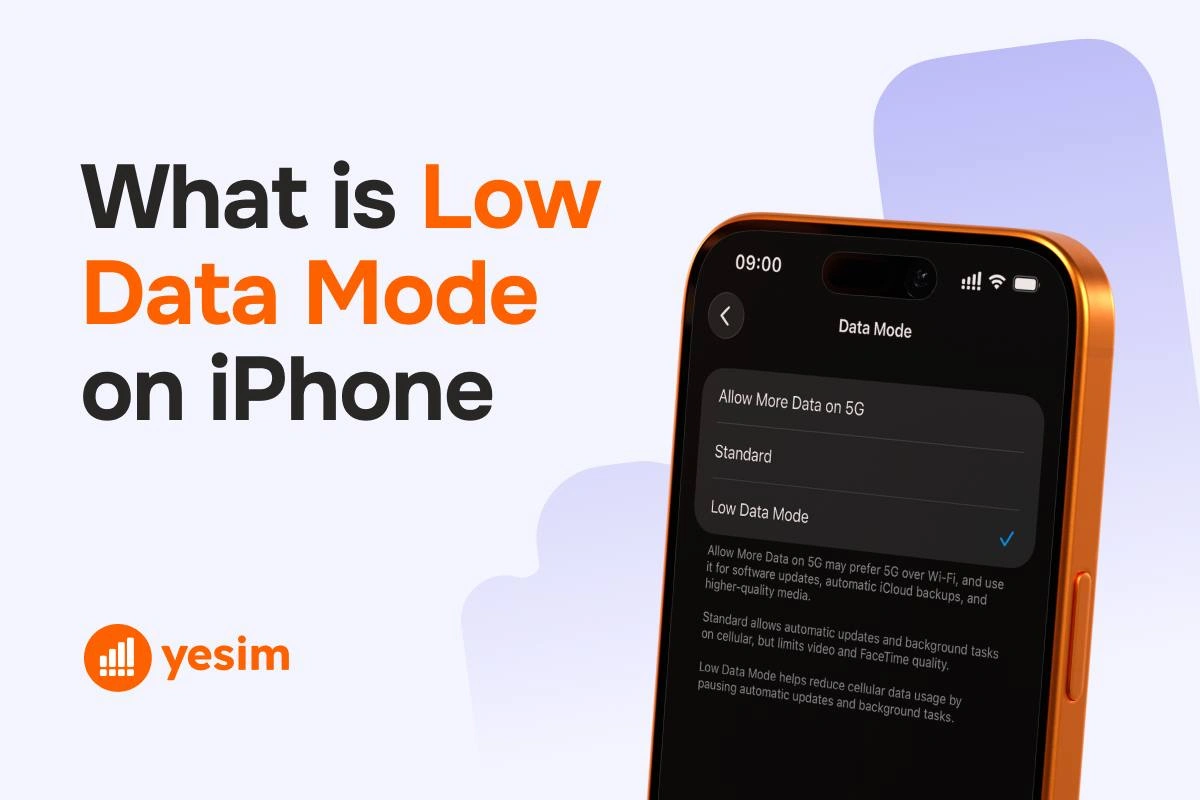
Low Data Mode iPhone setting is built into iOS and reduces how much data your iPhone uses in the background. When it is on, automatic downloads pause, background app refresh stops, and streaming apps reduce video quality. Your phone still connects to the internet normally, you just use less data while doing so.
This guide covers exactly what iPhone Low Data Mode does to each function, how to turn it on or off for cellular, Wi-Fi, Personal Hotspot, and eSIM lines separately, and when it actually makes sense to use it, especially when travelling with a limited data plan.
What is Low Data Mode on iPhone?
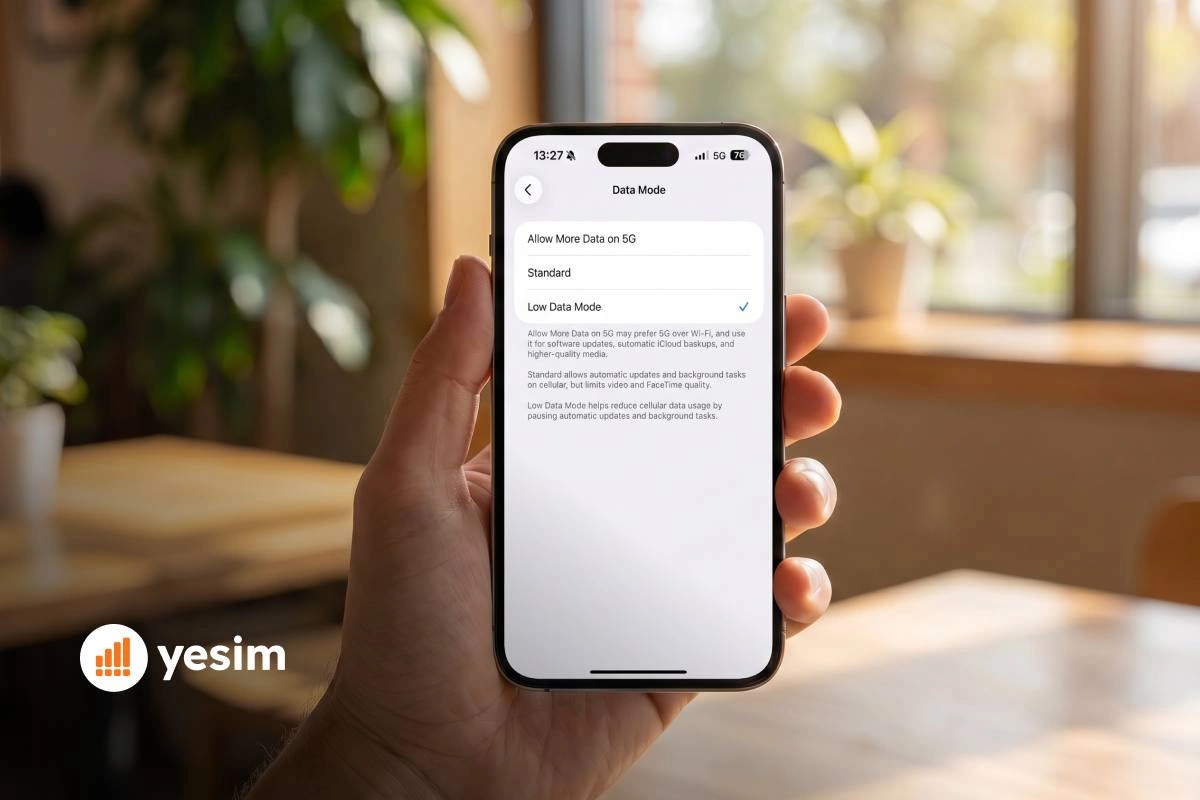
Low Data Mode on iPhone is Apple’s built-in data-saver setting, introduced in iOS 13. It signals to apps and iOS system processes that data is limited, so they should reduce background activity. Apps that respect Low Data Mode, which includes all Apple apps and most major third-party apps, will pause or slow down background tasks automatically.
What Low Data Mode means on iPhone in practice: your phone still works normally for active tasks. You can browse, stream, and make calls. What stops is the background work that uses data without you actively triggering it.
Where is Low Data Mode on iPhone?
The setting has two separate locations depending on which connection you want to control.
For cellular data:
- Open Settings
- Tap Cellular
- Tap Cellular Data Options
- Tap Data Mode
- Select Low Data Mode
For Wi-Fi:
- Open Settings
- Tap Wi-Fi
- Tap the (i) icon next to the network you are connected to
- Toggle Low Data Mode on or off
The two settings are independent. You can have Low Data Mode on for cellular and off for Wi-Fi, or vice versa.
How does Low Data Mode change your iPhone’s behaviour?
Low Data Mode does not slow your internet connection. It tells apps and iOS to stop using data for tasks that are not happening in the foreground, meaning tasks you did not actively start.
Background app refresh and automatic downloads
When Low Data Mode is on:
- Background App Refresh is paused. Apps like news readers, email clients, and social media do not pull fresh content until you open them manually.
- Automatic app updates from the App Store are paused. Apps only update when you open the App Store manually or trigger an update yourself.
- Automatic downloads across devices (music, apps, books) are suspended.
The practical effect: apps may take a second longer to show fresh content when you open them, because they have to fetch data on demand rather than having it ready in the background.
iCloud Photos, backups, and sync
iCloud sync is one of the biggest background data users on a typical iPhone. Low Data Mode pauses:
- iCloud Photos, photos taken while Low Data Mode is on do not upload to iCloud until either the mode is turned off or the phone is on Wi-Fi (if cellular Low Data Mode is on while Wi-Fi Low Data Mode is off)
- iCloud Backup, automatic backups over cellular stop
- iCloud Drive sync, documents do not sync in the background
This is why people often notice that their photos are not appearing on other devices after a trip. If you had Low Data Mode on for your cellular connection, iCloud Photos simply was not uploading.
FaceTime, streaming quality, and video calls
Low Data Mode signals to video apps that they should use less bandwidth:
- FaceTime reduces video quality to use a lower bitrate. Audio calls are unaffected.
- Netflix, YouTube, Apple TV+ and similar apps stream at a lower resolution, typically dropping from HD or 4K to standard definition or lower.
- Spotify and Apple Music may reduce streaming quality slightly depending on their own Low Data Mode implementation.
Phone calls over cellular are not affected by Low Data Mode. VoIP calls (WhatsApp, Facetime audio) may see slight quality reductions.

Effects of Low Data Mode: what changes
| Feature | Normal mode | Low Data Mode |
|---|---|---|
| Background App Refresh | On (apps update in background) | Paused |
| Automatic App Updates | Downloads automatically | Paused until manually triggered |
| iCloud Photo Sync | Uploads continuously | Paused (waits for Wi-Fi or mode off) |
| Automatic iCloud Backup | Runs in background | Paused |
| FaceTime Video Quality | Full quality | Reduced bitrate |
| Streaming Resolution | HD or 4K depending on service | Standard definition or lower |
| Push Mail Fetch | Continuous | Reduced frequency |
| Wi-Fi Assist | On (switches to cellular if Wi-Fi is weak) | Off |
| Active browsing / downloads | Normal | Normal, not affected |
| Phone calls | Normal | Normal, not affected |
How to turn on Low Data Mode on iPhone, and how to turn it off
For cellular data (LTE, 4G, and 5G)
- Open Settings.
- Tap Cellular.
- Tap Cellular Data Options.
- Tap Data Mode.
- Tap Low Data Mode to select it.
The change is immediate, no restart needed.
For Wi-Fi networks
Low Data Mode on Wi-Fi is set per network. It does not carry over from one Wi-Fi network to another.
- Open Settings.
- Tap Wi-Fi.
- Find the network you are connected to and tap the (i) icon to the right of it.
- Toggle Low Data Mode to On.
To turn it on for a different network, you need to connect to that network first and repeat the steps.
For Personal Hotspot
If you share your iPhone’s connection with other devices, Low Data Mode works slightly differently. When another device connects to your Personal Hotspot, iOS may enable Low Data Mode automatically on the iPhone sharing the connection. This is a built-in iOS behaviour designed to prevent the phone running the hotspot from burning through its cellular plan while also providing data to other devices.
To check or change this:
- Open Settings.
- Tap Cellular.
- Tap Cellular Data Options.
- Check whether Low Data Mode is enabled.
If it turned on automatically during a hotspot session, this is why. You can toggle it off from here.
iPhone hotspot Low Data Mode, or as some search for it, low data mode iphone hotspot, and the automatic activation is one of the most common reasons people find this setting turned on without having touched it.
For Dual SIM and eSIM users
If your iPhone has two lines, a physical SIM and an eSIM, or two eSIM profiles, Low Data Mode is set independently for each line. Turning it on for one line does not affect the other.
To manage Low Data Mode for a specific line:
- Open Settings.
- Tap Cellular.
- Under SIMs, tap the line you want to configure.
- Tap Cellular Data Options.
- Tap Data Mode and select Low Data Mode.
This matters particularly for travellers using a Yesim eSIM for data while keeping their home SIM active for calls. You can enable Low Data Mode on the home SIM (to prevent roaming charges from background apps) while leaving it off on the Yesim data line. Check which iPhones support eSIM and multiple lines at yesim.app/compatible-devices/.
How to turn off Low Data Mode on iPhone: low data mode iphone turn off guide
This is the most common action people need. The path is the same as turning it on, just toggle it back. To change Low Data Mode on iPhone or turn Low Data Mode off on iPhone, follow the steps below. Here is how to turn Low Data Mode off on iPhone.
To turn off Low Data Mode for cellular:
- Open Settings.
- Tap Cellular.
- Tap Cellular Data Options.
- Tap Data Mode.
- Select Standard or Allow More Data on 5G (if you have a 5G plan).
To turn off Low Data Mode for Wi-Fi:
- Open Settings.
- Tap Wi-Fi.
- Tap the (i) next to your current network.
- Toggle Low Data Mode to Off.
If Low Data Mode turned on by itself, most commonly this happens when you share a Personal Hotspot, follow the cellular steps above to disable it.
Should I use Low Data Mode on iPhone? When it helps and when it does not
When you should turn Low Data Mode on
- You are on a limited mobile data plan, a monthly cap of 5–10 GB where background apps could eat through your allowance without you noticing
- You are travelling abroad on a roaming data plan or travel eSIM, every GB counts when you are on a prepaid travel plan
- You are using your iPhone as a Personal Hotspot, prevents background apps on the iPhone itself from competing with the devices you are tethering
- You are on a slow or unstable connection, Low Data Mode reduces the number of simultaneous background requests, which can make the connection feel faster for active use
- Your battery is critical, background data processes wake the cellular radio repeatedly; reducing them helps modestly
When you should leave Low Data Mode off
- You are on unlimited Wi-Fi at home, no reason to restrict background sync; let photos upload and apps update automatically
- You rely on FaceTime or video calls for work, the quality reduction is noticeable on professional calls
- Timely iCloud backup matters to you, if you take photos that you want backed up immediately, Low Data Mode delays that
- You use Find My or location-sharing apps, some background location functions may be affected
Does Low Data Mode save battery life?
Yes, indirectly. Low Data Mode reduces the frequency and number of background network requests. Each time the cellular or Wi-Fi radio activates for a background task, it uses power. Fewer background requests means the radio stays dormant more often.
The battery saving is real but not dramatic, it is a side effect of less background activity, not a primary battery-saving mode. If battery life is your main concern, Low Data Mode plus Low Power Mode together will have a more noticeable effect than either one alone.
Also read: How to activate your Yesim eSIM, step-by-step setup before your trip, including how to configure your data line and enable Low Data Mode for the right SIM.
Low Data Mode when travelling: a smarter way to manage your eSIM data
Low Data Mode is a useful habit when travelling, but it solves the wrong problem on its own. The issue with roaming is not just that background apps use data, it is that most travel plans have a hard data limit. You can reduce background consumption with Low Data Mode and still run out of data because you are actively streaming, navigating, and posting.
The practical combination that works:
- Enable Low Data Mode on your eSIM data line to prevent background processes from eating into your plan
- Choose a plan with enough data for your actual usage, Low Data Mode adds 20–30% effective extra reach to a given plan, but it cannot double your data
For a week of active tourist use, navigation, messaging, social media, occasional video, most travellers need 5–10 GB. Low Data Mode can stretch a 5 GB plan comfortably through a week where it might otherwise run short.
Browse Yesim eSIM plans by destination. Plans are available for the US, Europe, Asia, and 200+ countries.
Yesim tip: After landing and disabling airplane mode, enable Low Data Mode on your eSIM cellular line before opening any apps. This prevents the burst of background syncing that typically happens when connectivity is restored, iCloud Photos, app updates, push notifications, from consuming a large chunk of your travel plan in the first few minutes.
Conclusion
What does Low Data Mode do on iPhone in summary: it reduces background data use without affecting active tasks. It is one of the most useful under-used settings on iPhone. It requires a one-time configuration and then runs silently in the background, extending how long your data plan lasts and reducing overall mobile data usage without meaningfully affecting how you use your phone day to day.
For travellers, it is a practical tool, but not a substitute for having enough data in the first place. The combination of Low Data Mode and a well-sized Yesim eSIM plan gives you both control and capacity for any trip. Check your cellular data settings, Low Data Mode is under Settings → Cellular → Cellular Data Options.