
 Yesim Team
Metro by T-Mobile eSIM is available on all current plans. You do not need to visit a store. The entire process, getting your QR code, scanning it, and activating your Metro eSIM, happens through the My Metro app or the Metro website, and takes a few minutes on a Wi-Fi connection.
This guide covers the activation process step by step for iPhone and Android, every current Metro plan with verified pricing and data details, and answers to the questions that come up most often: what to do if the QR code does not work, whether you can keep your number, and what the difference is between Metro eSIM and a physical SIM.
Does Metro by T-Mobile have eSIM?
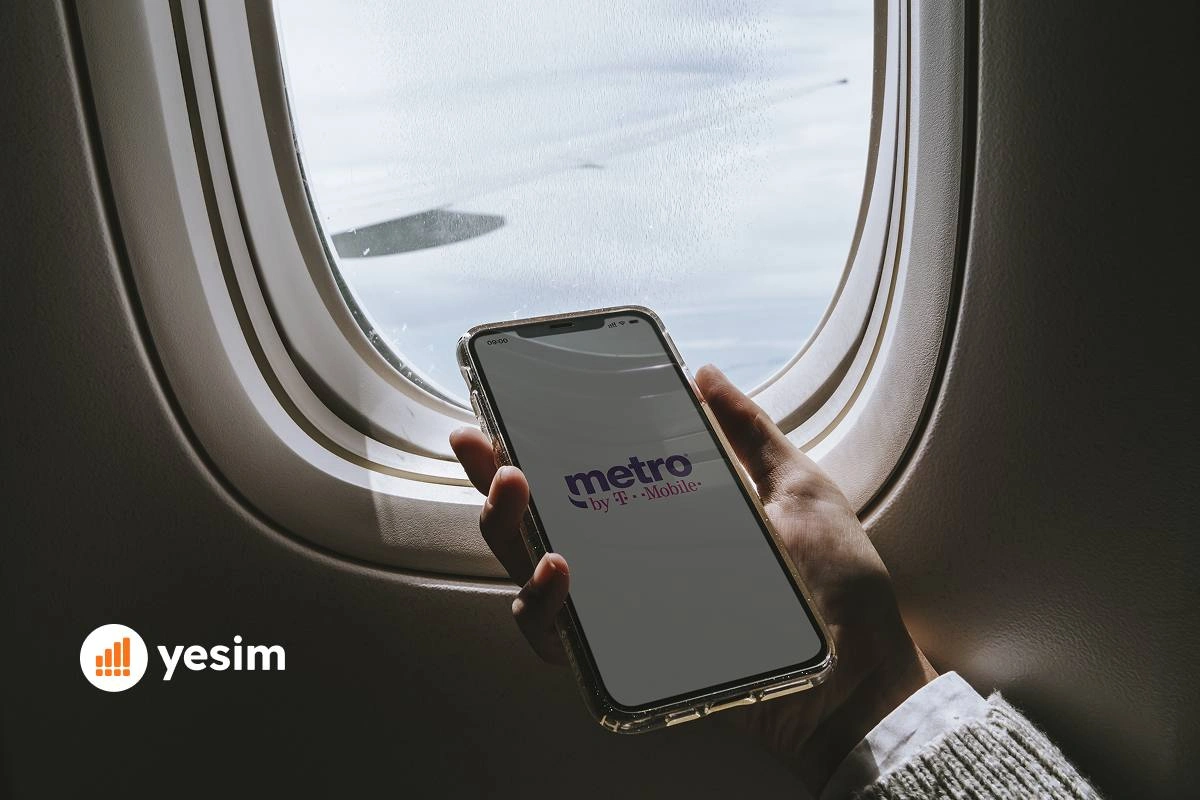
Yes. eSIM Metro by T-Mobile is available for both new customers. eSIM Metro by T Mobile activation is fully digital and existing customers converting from a physical SIM. You do not need to purchase a new SIM card or visit a retail store. Metro activates eSIM (and you can metro activate eSIM from any location) digitally within minutes over Wi-Fi using a QR code delivered through the My Metro app or email.
Metro by T-Mobile (also searched as Metro by Tmobile eSIM) is an MVNO (Mobile Virtual Network Operator) running on T-Mobile’s network. That means Metro eSIM gives you access to the T-Mobile network, specifically T-Mobile’s 4G LTE and Ultra-Capacity 5G infrastructure, the same network, at a lower price point than T-Mobile’s own plans.
Is Metro PCS the same as Metro by T-Mobile?
Yes. Metro PCS rebranded to Metro by T-Mobile in 2018 after T-Mobile completed its acquisition. The brand is now officially Metro by T-Mobile. Metro PCS eSIM and Metro by T-Mobile eSIM refer to the same product. Metro PCS eSIM activation follows the identical process.
Metro eSIM plans and pricing
All Metro unlimited data plans include unlimited domestic talk and text. The differences are data speed thresholds, hotspot data allowances, and additional perks.
| Plan | Monthly price (autopay) | High-speed data | Hotspot | Extras |
|---|---|---|---|---|
| Unlimited 5G Data | $25/mo | 35 GB then data deprioritization applies | None | Lowest cost unlimited |
| Starter | $40/mo | 10 GB | None | Best for light users |
| Starter Plus | $40/mo | Unlimited (35 GB threshold) | None | Unlimited at same price as Starter |
| Metro Flex Unlimited plan | $50/mo | Unlimited (35 GB threshold) | 8 GB | 100 GB Google One membership |
| Metro Flex Unlimited Plus | $60/mo | Unlimited (35 GB threshold) | 25 GB | Google One, HD video, international texting to 210+ countries |
Tablet and data-only plans:
| Plan | Monthly price | High-speed data | Hotspot |
|---|---|---|---|
| Tablet UNL + 2 GB Hotspot | $20/mo | Unlimited | 2 GB |
| Tablet UNL + 5 GB Hotspot | $25/mo | Unlimited | 5 GB |
| Tablet UNL + 8 GB Hotspot | $30/mo | Unlimited | 8 GB |
First-month pricing note: Several plans have a higher first-month price. Unlimited 5G Data is $30 the first month, then $25. Starter is $45 the first month, then $40. Metro Flex Unlimited is $55 the first month, then $50. Metro Flex Unlimited Plus is $65 the first month, then $60. Autopay is required for the lower ongoing price.
Yesim tip: The Metro Flex Unlimited Plus at $60/mo includes unlimited international texting to 210+ countries, useful if you regularly text internationally. For international data when travelling, that plan does not include roaming data. A Yesim eSIM installed alongside your Metro eSIM handles that.
Metro eSIM QR code: how to get it
The Metro QR code eSIM is how your phone installs the eSIM profile. This Metro eSIM QR code scan is the key step. You get it one of two ways:
Through the My Metro app:
- Download and open the My Metro app (iOS or Android).
- Sign in with your Metro account credentials.
- Go to Account → Manage Devices → eSIM.
- Select your line and tap Download eSIM or Get QR Code.
- The Metro by T-Mobile eSIM QR code appears on screen. You can also access the Metro by T Mobile eSIM QR code and the Metro by Tmobile eSIM QR code process through the Metro website. Keep it visible, you need to scan it from another device or take a screenshot to use in the next step.
Through the Metro website:
- Log in at metrobyt-mobile.com.
- Go to My Account → Manage Plan → eSIM.
- Follow the prompts to generate your eSIM QR code.
- The QR code is delivered on screen and by email.
New customers activating for the first time:
- Go to metrobyt-mobile.com or the My Metro app and select a plan.
- Choose the eSIM activation option during checkout.
- Complete payment.
- The Metro eSIM QR code is delivered by email and in the app immediately after purchase.
Yesim tip: Screenshot your Metro eSIM QR code and save it somewhere accessible before you start the installation. The QR code scan must happen from a second screen (another phone, a laptop, or a printout) because your phone’s camera needs to see the code externally. Alternatively, use the manual activation code which the app also provides.
How to activate Metro eSIM on iPhone
Before you start: your iPhone must be eSIM compatible (iPhone XS 2018 or later) and carrier-unlocked if you are bringing your own device.
- Open Settings on your iPhone.
- Tap Cellular.
- Tap Add eSIM or Add Cellular Plan.
- Tap Use QR Code (or select Enter Details Manually if you have the activation code instead of a QR code).
- Scan the Metro eSIM QR code using your iPhone camera. Hold it steady, the code will register automatically.
- Tap Continue when prompted.
- Name the new line (e.g., “Metro”) when asked to label it.
- Choose whether to use Metro as the default line for calls, texts, and data, or set it for data only.
- Tap Done.
The Metro eSIM activates within a few minutes. You will see the Metro or T-Mobile signal bars appear. Make a test call to confirm the line is live.
Transferring an existing Metro number to eSIM on iPhone: The process is the same. Your Metro number moves to the eSIM profile during activation. The physical SIM card associated with that number becomes inactive once the eSIM is activated. You do not need to return the physical SIM.
How to activate Metro eSIM on Android
The exact path varies by manufacturer.
Samsung Galaxy:
- Open Settings.
- Tap Connections → SIM manager.
- Tap Add eSIM or the + button.
- Tap Scan QR code from service provider.
- Scan the Metro by T-Mobile eSIM QR code.
- Follow the prompts to confirm and activate.
Google Pixel:
- Open Settings.
- Tap Network & internet → SIMs.
- Tap the + button or Download a SIM instead?
- Tap Download and scan the Metro eSIM QR code.
- Follow activation prompts.
Motorola:
- Open Settings.
- Tap Network & internet → Mobile network.
- Tap Advanced → Carrier → Add carrier.
- Scan the Metro eSIM QR code or enter activation details manually.
After activation on any Android device: go to Settings → Connections (or Network & internet) → SIM manager and confirm the Metro eSIM line is set as the active data SIM. Enable data roaming if you plan to use the phone abroad.
Metro eSIM compatible devices
Metro eSIM compatible phones and devices include:
- iPhone: XS, XS Max, XR, 11 series, 12 series, 13 series, 14 series, 15 series, 16 series, SE (2nd gen 2020 and 3rd gen 2022). iPhone 15 and later US models are eSIM-only.
- Samsung Galaxy: S20 and later, Note 20 series, Z Fold 2 and later, Z Flip 3 and later, A53 and select A-series models.
- Google Pixel: 3a and later.
- Motorola: Razr 2019 and later, Edge series (select models).
- Other Android: Many flagship devices from Sony, OnePlus, and Xiaomi support eSIM, check the manufacturer’s eSIM support page for your specific model.
- BYOD (bring your own device): Metro supports BYOD eSIM activation for compatible, carrier unlocked devices. If your phone is locked to a different carrier, it must be unlocked before Metro eSIM can be installed.
Metro eSIM troubleshooting: common issues and fixes
QR code not scanning
- Ensure the QR code is fully visible and not cut off by the screen edge
- Clean your camera lens
- Try increasing screen brightness on the device displaying the QR code
- If scanning still fails, use the manual activation code from the same screen in the My Metro app, tap “Enter details manually” instead of scanning
“eSIM not supported” error
- Confirm your device is on the supported devices list
- Confirm your device is carrier-unlocked (a locked device cannot install a Metro eSIM)
- If your phone is locked to a previous carrier, contact that carrier to request an unlock before proceeding
eSIM installed but no signal
- Check that the Metro eSIM line is set as the active data line in Settings
- Enable data roaming on the Metro line: Settings → Cellular → [Metro line] → Data Roaming → On
- Toggle the line off and on in Settings to force a network reconnection
- Restart the phone
“Your eSIM cannot be activated at this time”
- This usually means the account activation is still processing on Metro’s side (can take up to 15 minutes)
- Wait and try again
- Contact Metro support at *611 from a working phone or 1-888-8METRO8 from any phone
Lost or deleted the QR code
Log back into the My Metro app. In most cases, the eSIM section shows the original QR code. If it has expired, contact Metro support to request a new activation code.
Metro eSIM vs physical SIM: which should you choose?
For most users, Metro eSIM is the better option: faster, simpler, and no waiting for a SIM card to arrive or making a store trip. The one case where a physical SIM has a practical edge is if you regularly switch between devices and want to physically move your line.
| Factor | Metro eSIM | Metro physical SIM |
|---|---|---|
| Setup | App or website, 5 minutes, no store needed | In-store or SIM kit by mail, 1–2 days |
| Works immediately | Yes, activates over Wi-Fi | Requires SIM insertion and activation |
| Can be transferred to another phone | Not directly, tied to device | Yes, physically move the card |
| Risk of physical damage or loss | None | Card can be lost, damaged, or stolen |
| Multiple lines on one device | Yes, alongside a physical SIM | One card per slot |
| BYOD supported | Yes, unlocked phones | Yes |

Metro eSIM for international travel
Metro by T-Mobile eSIM is a US-only service. International roaming is available in select countries, but the details depend on your plan. The Metro Flex Unlimited Plus plan includes unlimited international texting to 210+ countries. Data roaming rates while abroad vary by destination, Metro’s international coverage page lists partner countries and applicable rates.
For travellers who need reliable data abroad without roaming charges, the practical approach is to install a Yesim eSIM for the destination country alongside your Metro eSIM. Your Metro number stays active (for calls and texts via Wi-Fi calling when on Wi-Fi). The Yesim eSIM handles data at local rates.
Because Metro runs on T-Mobile’s network, international partner coverage is wherever T-Mobile has roaming agreements. For trips to popular destinations, Europe, Mexico, Canada, Japan, coverage exists but speeds and costs vary. Check metrobyt-mobile.com for current international rates before travelling.
Also read: What is an eSIM and how does it work, a complete explanation of eSIM technology, compatible devices, and how to manage multiple eSIM profiles on one phone.
Metro eSIM free trial: what it is
Metro eSIM free trial refers to Metro’s offer that allows new customers to try the network before committing to a paid plan. Availability and terms change, check metrobyt-mobile.com for current offers. The free trial uses the same eSIM activation process described in this guide, with the QR code delivered after free trial signup.
Conclusion
Metro by T-Mobile eSIM is one of the simplest carrier eSIM activations available in the US.
The plan lineup is straightforward too. At $25/month on autopay, the Unlimited 5G Data plan is one of the cheapest unlimited options from a major US carrier. Step up to Metro Flex Unlimited Plus at $60/month and you get 25 GB of hotspot data, Google One, and international texting to 210+ countries.
Where Metro falls short is international data. Roaming exists but is limited, and the speeds and costs abroad make it impractical for anyone travelling more than a day or two. If international travel is part of your plans, install a Yesim eSIM for your destination before you fly, your Metro number stays active on the physical SIM for calls and texts, and the Yesim eSIM handles data at local rates.







 Max Pankratov